by Graham Barnes | Oct 21, 2016 | Marketing Ideas, Search Engine Optimization, Social Media, Technical Support, Technology Ideas, Website Analytics
As web development professionals, clients often seek our guidance when solicited with digital marketing and web design services that seem too good to be true. Businesses are promised packages that deliver first page search engine results, pay per click campaigns generating massive ROI and more social media “likes and shares” than they can dream of. You name it, the list of promises goes on and on.
 Let’s be honest, although technology plays a crucial role in our lives, it can be intimidating. If you’re running a business, you often don’t have time to be on top of “the next big thing” each time it rolls around. You trust your vendors and partners to provide you with honest direction and to understand the role technology plays in your business. Perhaps you’ve been pitched marketing packages by fast talking, high pressures sales folks signaling doomsday if you don’t sign up for their digital services. We have seen (and been told about) several examples of these partnerships going awry. After the contract is signed, you’re unable to cancel, continue to be billed for months and can’t get a hold of anyone in customer service. Not cool.
At JB Systems, we prefer to do business a bit different; entirely different, in fact. Our commitment to our clients means we’re always available to offer advice on what web, marketing and other digital services might be the best fit for your business. Additionally, our proposals are always transparent, straightforward, and easy to understand so you know exactly what you’re paying for. Give us a call and setup an appointment for a complimentary website review and/or to discuss any of our services. We won’t lock you into a multi-year contract, highjack your domain or send you invoices for additional services you didn’t agree to. It’s all part of our promise at #TeamJB to make the web simple.
Did You Know? JB Systems Offers The Following Services:
• Monthly SEO Programs
• Pay-Per-Click & Ad Remarketing Services
• Content Strategy/Preparation with Emphasis On SEO Analysis/Mapping
• Photography
• Video
• Email Campaign & Drip Messaging
• Social Media Management
• Website Maintenance Programs
• Print Collateral & Marketing Materials
• …and course, website design, development, training and more!
We’re proud of our 15 years of business and the hard-working foundation to which our company is built on. We thank you for your business and hope to continue to partner with you as “we’re never done.” Please click here for any additional questions on how we may be of service to you.
by admin | Oct 14, 2015 | Random Postings, Technical Support, Technology
Over the past few days, we’ve received phone calls from concerned clients, saying they are unable to send emails. After investigating this problem further, we’ve determined that the common denominator in this issue is Outlook 2010. A setting in Outlook was turned off. We’re unsure why this happened, but JB Systems can confirm that it doesn’t have to do with our servers. If you’re using Outlook 2010 and experiencing this problem, please see the instructions (more…)
by admin | Dec 18, 2014 | Scams, Viruses, Trojan's Oh My, Search Engine Optimization, Technical Support
 According to Search Engine Journal, see it HERE, over 100,000 WordPress sites have been infected due to a Russian malware attack called SoakSoak. Now, to be fair, this isn’t an attack on the WordPress site itself, rather a plugin for the site called RevSlider that is used in many of the WordPress themes. But you already know enough not to use plugins – right? Unfortunately, this plugin is buried so deep in some of the most popular WordPress templates, users wouldn’t know they are using them.
The not-so-much-talked-about issue is that over 11,000 of these sites have been blacklisted by Google already. So what does this mean for Search Engine Optimization (SEO)?
In a previous post, we had discussed the security vulnerabilities in plug-in based template sites and the latest malware attack is a perfect example. The problem: many of these plug-ins are not easy to update and leaves not just the plug-in but the whole website in jeopardy. Each plug-in (and there are literally hundreds) can be developed by a different business or individual who is responsible for monitoring security threats and creating fixes. If your website “solution” relies on 4 different plugins (not uncommon) that translates into a lot of potential issues (more…)
by admin | Oct 8, 2013 | Random Postings, Technical Support, Technology Ideas
What is a browser?
A web browser is software on your computer, smartphone, or tablet that allows you to access the Internet. Examples would be:
- Internet Explorer
- Firefox
- Safari
- Chrome
- Opera
A web browser is specific to YOUR computer only, and each can be configured differently and track your history differently than your neighbor’s computer or browser. Because of web browsers, websites can appear and function differently.
At JB Systems, we utilize browsers more than the average Joe, for obvious reasons. But because of that, we have come across a number of tips that might help casual Internet users understand their browsers and use them more effectively. Below is our list of 10 Things You Should Know About Web Browsers.
- Just because your computer comes with a browser installed, that doesn’t mean you have to use it. There are numerous browsers available (we recommend Firefox, Safari, or Chrome), and most of them adhere to the same set of standards that make websites looks awesome. One exception is Internet Explorer, which likes to follow its own set of rules, which is also why it’s more difficult to support.
- On a related note, you can disable Internet Explorer (IE) in “Add or Remove Windows components”. But, you might have to deal with your computer continuously asking you to re-install it.
- Always check for updates and then do them. Firefox and Safari update automatically, but Internet Explorer updates with the operating system, or has an option to update automatically if you want. For this reason, IE still has many versions out there that website developers have to support in order for sites to look good across the board. Believe it or not, some companies still use IE6, which is no longer supported and is nearly 15 years old. Yikes!
- On another related note, Microsoft will be discontinuing support for WindowsXP in 2014, meaning support for IE7 and IE8 will also likely be going away.
- Try not to use Internet Explorer. For more on that, see here.
- When in doubt, clear your cache. My what?! Your cache is like a repository of images and other content that your browser keeps stored so that sites you visit repeatedly load faster. However, if you or your developer is updating your site, those updates might not show up until you clear your cache. Some browsers do this automatically (not Internet Explorer), but only about every 30 days or so. For more on that, see here.
- Browsers do not always support the same features. Most browsers support many of the newest web technologies and features. However – and you’re probably picking up on a theme here – Internet Explorer is notorious for not keeping up. A website can look drastically different between browsers (especially IE) because each browser renders sites differently.
- Hackers like old browsers. The longer a piece of software (including web browsers) is out there, the more time hackers have to find security holes. For example, in early versions of Internet Explorer, hackers programmed sites to eject the computer’s disc drive or start the Calculator program. Whoa.
- Browsers have extensions, plug-ins, or add-ons allowing you to customize your browser. Plug-ins are additional software that work with your browser to provide additional functionality when browsing the web. They can drastically change your web browsing experience for the better. Some of the most common are QuickTime, Adobe Flash, Java or any anti-virus software plug-in.
- Browsers can now be in sync (no, not the ’90s boy-band). The newest versions of most browsers allow you to log in to the browser, which stores your personalized settings in the cloud, making them accessible from anywhere. So, if you’re on your desktop computer and you have bookmarks or passwords saved, it’s a pain to use your laptop because those bookmarks and passwords don’t come along with you, right? Well, now they do. Refer to #3, then log in!
BONUS: The 11th Thing You Should Know About Browsers
Most browsers have an Incognito or InPrivate mode. If you’re surfing not-so-tasty websites or…uh….I mean, shopping for a gift for your significant other, you can do it without others knowing where you’ve been or what you’ve been shopping for.
BONUS: Browser Mantra
This is my browser.
There are many others like it, but this one is mine.
Without me, my browser is nothing.
Without my browser, I am nothing.
by admin | Feb 25, 2013 | Random Postings, Scams, Viruses, Trojan's Oh My, Technical Support
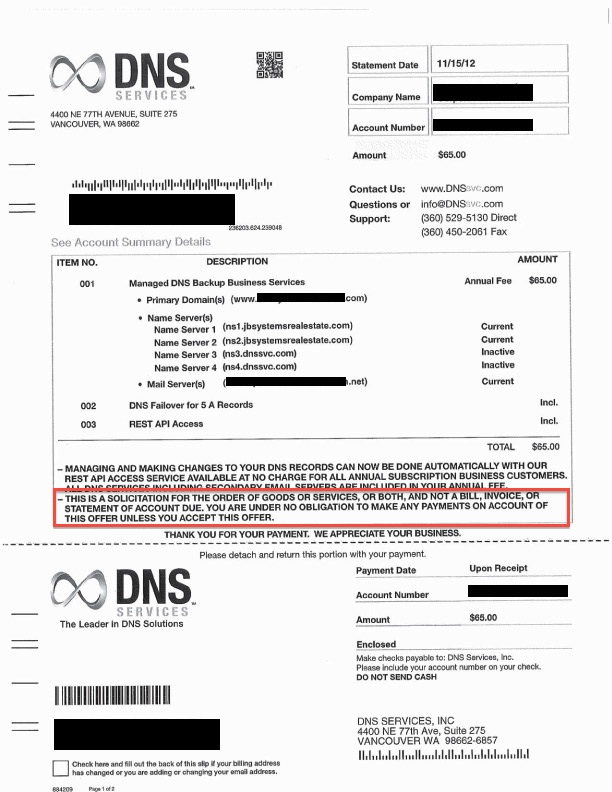
Many of our clients get solicitations from domain registry companies and DNS management services on a regular basis. They look like an invoice, and sometimes they even have what looks like legitimate information on them. But – beware…these are sneaky marketing pieces trying to get you to just pay it, when in fact, you may not have to. Here’s what they look like:
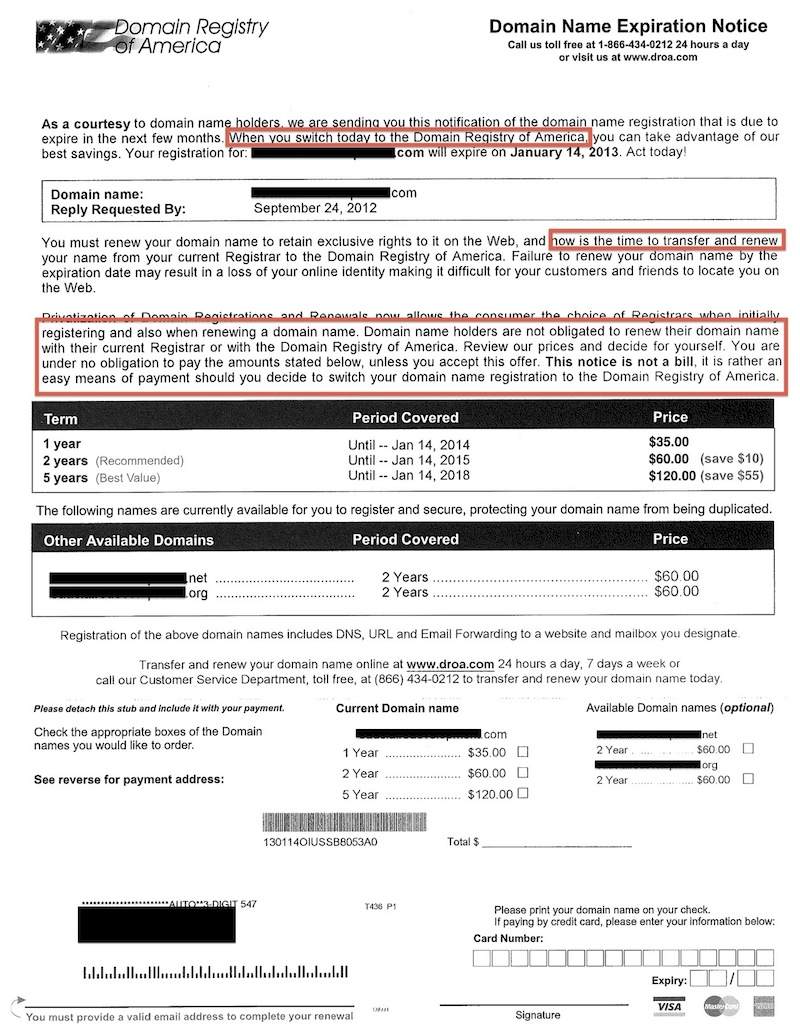
We have also had clients receive mail from places like Domain Registry of America, a company that handles domain registrations. However, their marketing piece looks like a notice of a domain expiring, and that by paying the invoice (or what looks like an invoice), all will be well with the domain name. Here’s what that might look like:
(Notice in both examples the areas in red….these are giveaways that it is just a solicitation, not a bill requiring payment.)
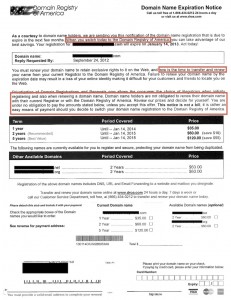
In the big picture of marketing, this tactic isn’t new. Magazines have been doing this with their subscriptions for years. But – in today’s technology-driven world, a domain name can make or break a business. The industry has made their money on fear – our fear of losing a domain, fear of our competitor getting our domain, fear of losing business all because we let a domain name expire. Wow! That’s powerful!
So, it’s no surprise that business owners and website managers are cautious anytime they receive a notice about their domain name. As they should be – it is important to pay attention to. However, there are easy ways to go about making sure that your domain name is well taken care of.
1. Check your WHOIS listing.
WHOIS is a directory of domains and their registration information. Look for the expiration date, and the “Registrant” info. Your company name should be listed as the Registrant. You can find your WHOIS listing by going to who.godaddy.com and typing in your domain name.
2. If you manage your own domain name with someone like GoDaddy, Network Solutions, ENOM, or other similar sites,make sure to set your domain name to ‘Auto-Renew’. That means that it will automatically renew your domain name for you without having to worry that it will expire.
3. When purchasing a domain name, purchase it for multiple years (max is usually 9 or 10 years). This not only takes the burden off of you to renew it every year, but it also gets you bonus SEO (search engine optimization) points!
4. Call JB Systems! Domains seem like the unknown to many small business owners, but it doesn’t have to be a part of your business that is shrouded by fear. If you’re ever in doubt, our team at JB Systems can check on your domain, or manage it for you.
by admin | May 26, 2010 | Random Postings, Technical Support
Around 5:10PM today (May 26th) a couple of our dedicated servers experienced issues today resulting in approximately 2 hours of down time. We apologize for any inconveniences this outage has caused.
Engineers at our data facility today were notified of a down router this afternoon and around 7:10PM had the issue resolved. JB Systems responded to the issue within moments of it happening we’re happy to report a limited outage of only 2 hours.
We appreciate the patience and understanding of our clients, and we’ll continue to respond to issues like this in the most expedient of ways.

 Let’s be honest, although technology plays a crucial role in our lives, it can be intimidating. If you’re running a business, you often don’t have time to be on top of “the next big thing” each time it rolls around. You trust your vendors and partners to provide you with honest direction and to understand the role technology plays in your business. Perhaps you’ve been pitched marketing packages by fast talking, high pressures sales folks signaling doomsday if you don’t sign up for their digital services. We have seen (and been told about) several examples of these partnerships going awry. After the contract is signed, you’re unable to cancel, continue to be billed for months and can’t get a hold of anyone in customer service. Not cool.