
JB Systems Supports Cancer Research
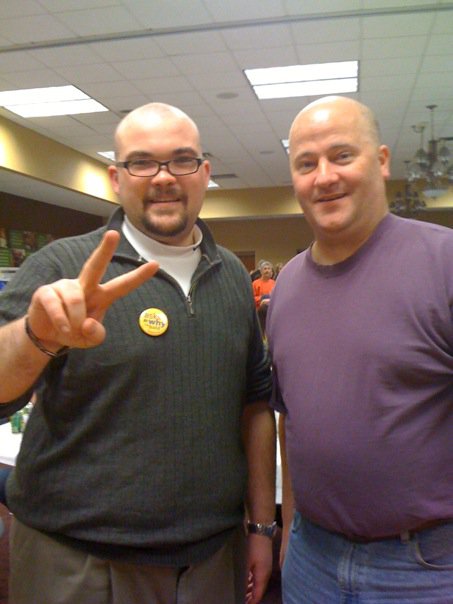
Gerald Bauer (JB Systems) and James Chumas (The Chumas Agency)
Written by Gerald Bauer, owner and founder
Well everyone, 2010 marked the first year of JB Systems’ support of children’s cancer research through St. Baldricks, a national organization that promotes “shaving the way” to fighting kids cancer. It also marks the first time I have been seen without hair!
Giving back is something JB Systems takes seriously, and helping out with children’s cancer is a cause we feel is important. Feel free to visit http://www.stbaldricks.org/ for more information about the organization, their cause, and how to get involved.
Thousands of kids per year are diagnosed with cancer, and all have to learn to put their self-consciousness aside and deal with hair loss. So, to pay them tribute, so did I. And in true JB-fashion, lets throw conformity out the window, let vanity take its course elsewhere, and lets make a difference in this world. Let’s set the new standard!
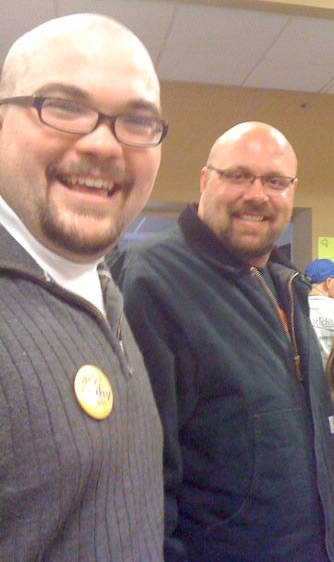
Gerald Bauer (JB Systems) and Aaron Brunette (Coldwell Banker)
In the past, JB Systems has contributed to the Susan G Komen Breast Cancer Foundation, Big Brothers Big Sisters, Helping American Vietnam Veterans, as well as Eau Claire’s Feed My People Food Bank and Eau Claire’s Hope Gospel Mission.
Giving back to the community is a huge factor of our business model, be it monetary donations or time given to help out with projects, or even cooking for the needy. JB Systems plans on continuing our commitment to these organizations in the future – and we look forward to meeting you there.